

Convert Powerpoint to Video
Export and Convert Your PowerPoint Presentation to a Video for Easy Sharing and Playback
Try this Course with a Free Trial


If you don’t want to worry about whether someone has the righvt software to view your presentation, you can save it as a video. A video can be distributed by publishing it on the web or sending it in an email. This works particularly well for an audience that lacks PowerPoint, is off-site, or cannot attend live presentations.
Convert a Presentation to Video
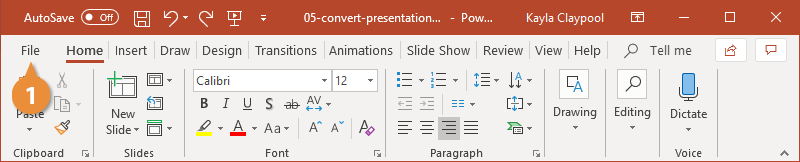
- Click the File tab.
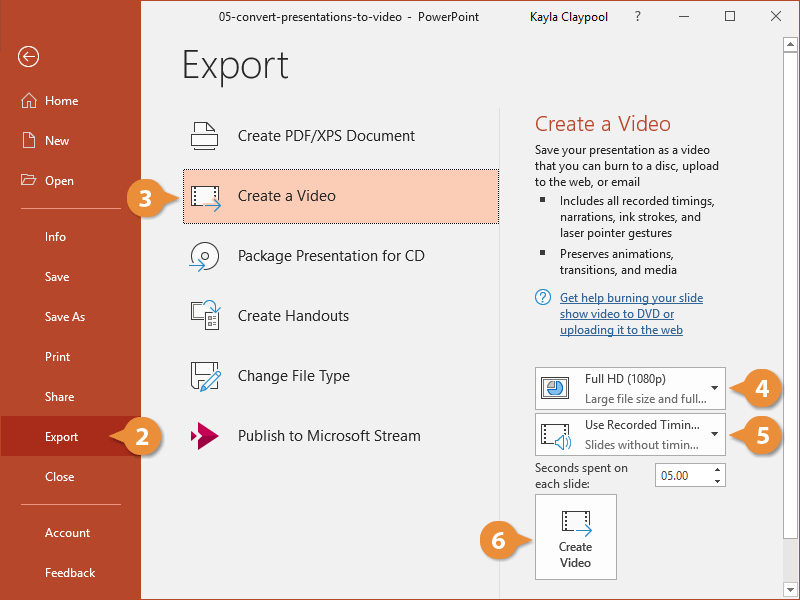
- Select Export.
- Click Create a Video.
- Select a resolution setting:
- Full HD: Saves a full high-quality video with a large file size.
- HD: Saves a moderate quality video with a medium file size.
- Standard: Saves a low-quality video with a small file size.
- Select a timing setting:
- Don’t Use Recorded Timings and Narrations: All slides will use the default duration set below the menu.
- Use Recorded Timings and Narrations: Slides will use the durations set when recording the slide show.
- Click Create Video.
- Type a file name and select a file type.
- Click Save.
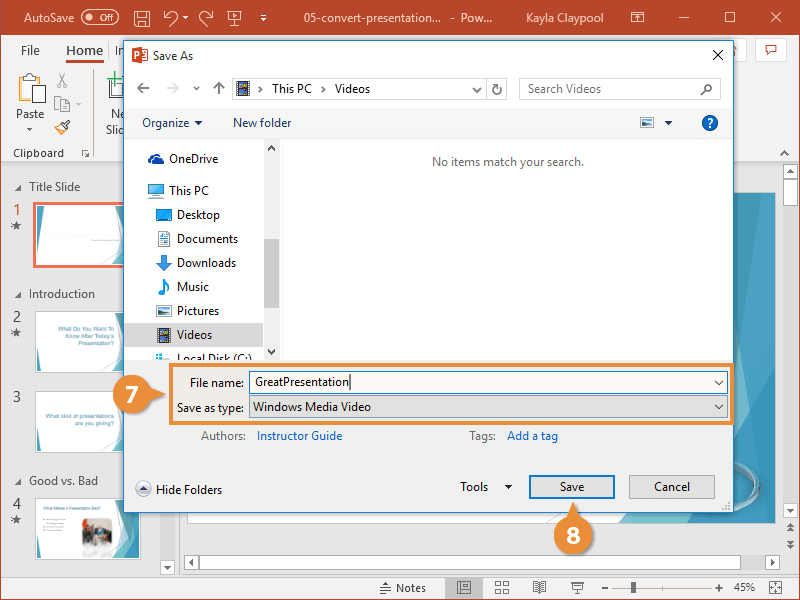
The dialog box closes and the video is saved.